
How do I manage the suppression list?
Find, add, import, and where allowed remove addresses that ColdMerge must not email.
3 min read
Open Contacts, then Suppression. The list applies to every campaign and mailbox in the account.
Find an address
Section titled “Find an address”- Enter the complete email address in Look up an address.
Only an exact address can match. Partial text such as a company name does not work because suppression lookups use a one-way hash.
Add a few addresses
Section titled “Add a few addresses”- Open Paste addresses.
- Paste up to 1,000 addresses.
- Select Never email these.
Use one address per line, or separate addresses with commas or semicolons.
ColdMerge also understands entries such as Ada Lovelace <ada@example.com>.
Valid addresses are suppressed immediately. Invalid lines remain in the field so you can correct them. Adding an address already on the list keeps its original reason and date.
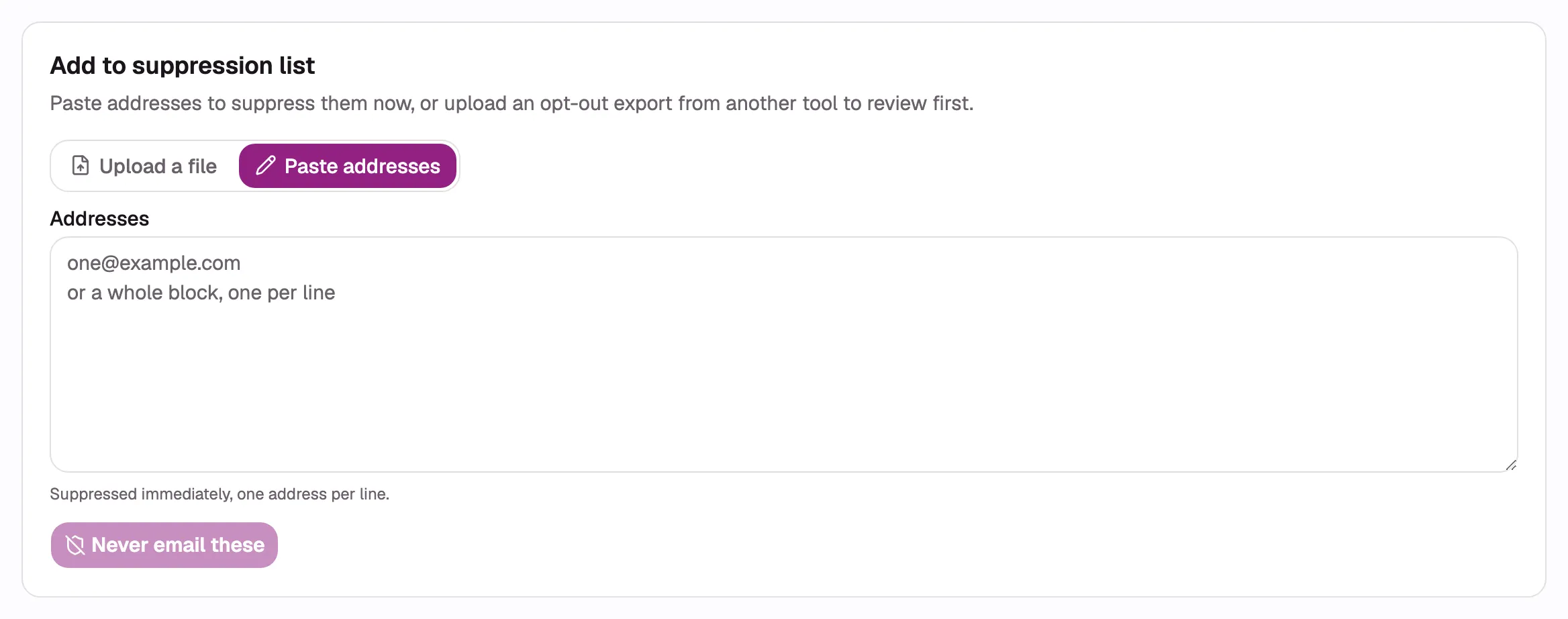
- Choose Upload a file or Paste addresses.
- Enter the addresses to suppress, one per line.
- Select Never email these to add them to the list.
Import a suppression file
Section titled “Import a suppression file”- Open Upload a file.
- Drop the file in the upload area or browse for it.
- Select Read the addresses.
- Review and apply the suppression import.
Suppression imports do not need column mapping or a target list. They cannot be undone as a batch. Use Past imports to return to an import that is still running.
To suppress existing contacts instead, select them on Contacts and choose Suppress.
Mark someone as opted out
Section titled “Mark someone as opted out”Use this when a recipient replies asking you to stop.
- Open the contact from Contacts, or open the campaign and find their row in Recipients. The action appears on a recipient’s row once they have replied.
- Select Mark as opted out.
- Confirm.
The address is suppressed across the whole account with reason Opted out (reply), and their waiting follow-ups in every campaign end at once. Anyone in the account can do this. If the address is already suppressed, it keeps the reason it has. To undo it, an Owner or Admin removes the row from this screen.
Read the reason
Section titled “Read the reason”| Reason | Meaning | Removable? |
|---|---|---|
| Unsubscribed | The recipient used an unsubscribe control. | No |
| Opted out (reply) | Someone in the account marked them as opted out after a reply. | Owner or Admin only |
| Bounced | A mail server reported the address as undeliverable. | Owner or Admin only |
| Added by you | Someone in the account added or imported it. | Owner or Admin only |
| Erased | Personal data was erased and only a one-way hash remains. | No |
A later unsubscribe makes an existing row permanent without changing its original reason or source. A row can therefore still display Bounced or Added by you while no longer being removable.
The source column shows whether the address came from a link, bounce, manual entry, import, or Contacts selection. Imported opt-outs use Added by you so a mistaken import can still be corrected one address at a time.
Remove an address
Section titled “Remove an address”- Find the address.
- Select Remove in its row.
- Confirm that it may receive campaigns again.
Only Owners and Admins can remove a removable row. Nobody can remove an erased row or a row marked by an unsubscribe, even if its displayed reason is Bounced or Added by you. Members do not see the removal control. Hover over or select the info icon in Removal to see why a permanent row cannot be removed.
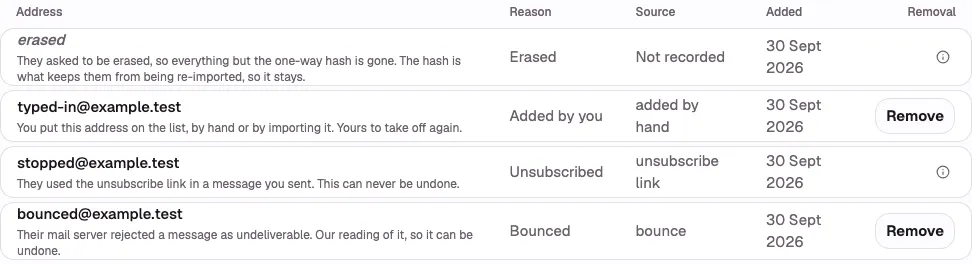
- A bounced address has a Remove button.
- The info icon explains why an unsubscribe cannot be removed.
- The info icon also explains why an erased address stays suppressed.
Effect on campaigns and imports
Section titled “Effect on campaigns and imports”- A suppressed address receives no new campaign or preview message.
- Waiting follow-ups for that address end.
- Imports skip the address without creating or updating its contact.
ColdMerge checks suppression again at send time, so an address suppressed after an import is still protected.