
How do I set up my sending domain?
Publish SPF, DKIM, and DMARC records for a Google Workspace sending domain, then re-check them.
3 min read
Set up SPF, DKIM, and DMARC for the domain after @ in your Google Workspace
address. A free @gmail.com mailbox has no domain of its own, so these steps do
not apply to it.
You need access to the domain’s DNS provider. DKIM also requires access to Google Admin.
Open the sending domain screen
Section titled “Open the sending domain screen”- Open Settings, then Accounts.
- Find a Google Workspace mailbox.
- Select its domain badge.
Mailboxes on the same domain share these records, so you configure the domain once.
The three records
Section titled “The three records”| Record | Where the value comes from |
|---|---|
| SPF | ColdMerge shows the TXT host and value to publish |
| DKIM | Google Admin generates the TXT host and value |
| DMARC | ColdMerge shows a safe starting TXT host and value |
Publish SPF
Section titled “Publish SPF”- Read the SPF card’s status, then open your domain provider’s DNS settings.
- For Not found, copy the supplied Host and Value into a new TXT record.
- For Google not authorized, edit your existing SPF record to include
include:_spf.google.com. Keep the other senders you use. - For Multiple records, merge the authorized senders into one SPF record. Do not add another record.
- For Needs review, select Re-check now before changing your record.
- Save any corrections, then select Re-check now.
Publish DKIM
Section titled “Publish DKIM”- In Google Admin, open Apps, Google Workspace, Gmail, then Authenticate email.
- Choose the domain and generate a record.
- Add the generated host and value as a TXT record at your DNS provider.
- Return to Google Admin and select Start authentication.
Google does not sign mail with the domain until the last step is complete.
Publish DMARC
Section titled “Publish DMARC”- In the DMARC card, copy Host and Value.
- Add them as a TXT record at your DNS provider.
- Save the record.
Start with the value ColdMerge supplies. If you already have a DMARC record, edit it carefully instead of replacing reporting addresses or other tags.
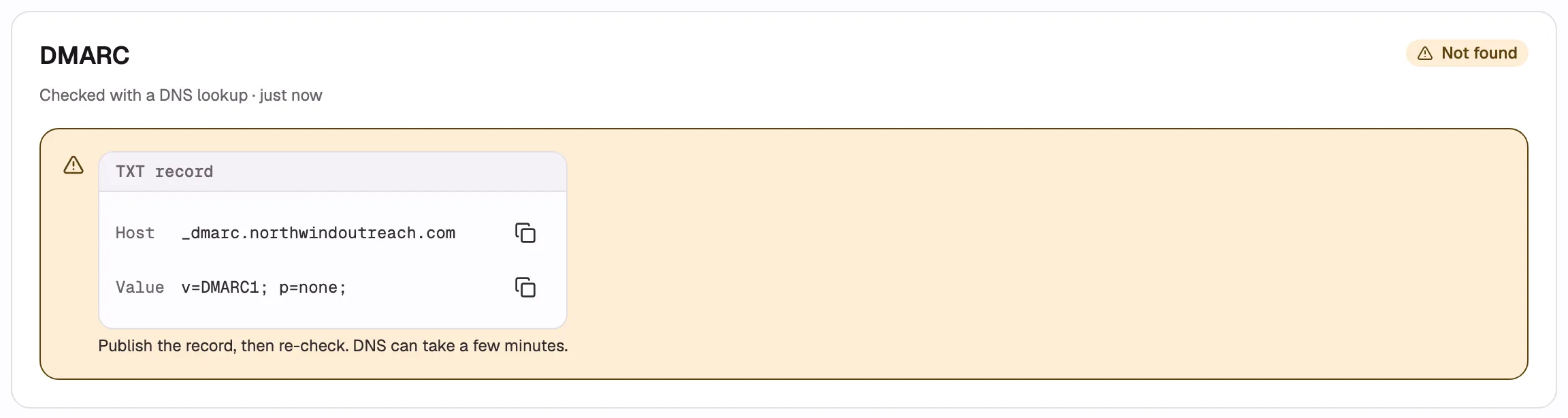
- Copy the DNS record Host.
- Copy the DNS record Value.
Re-check
Section titled “Re-check”Leave the domain’s page open after publishing the records. Until every signal passes, it re-checks every 30 seconds for up to 15 minutes, only while the tab is in front, and shows Checking automatically… under Re-check now. Select Re-check now to check at once. If it says Still waiting, your DNS has not updated yet; re-check once it has. ColdMerge also re-checks connected sending domains each day.
When every signal passes, the page shows Healthy. Use Sending-domain statuses to interpret any other result.
Trial email timing
Section titled “Trial email timing”ColdMerge may remind you when a trial domain is not Healthy:
- The first tip becomes due 24 hours after your first campaign message sends.
- The second becomes due 48 hours after the first tip was successfully sent. It includes your SPF and DMARC values plus Google Admin DKIM instructions, ready to forward to whoever manages your DNS.
- Tips leave from 08:00 to 19:00 in your local timezone, at least 24 hours apart.
- ColdMerge sends at most three tips or product-news emails in any rolling seven days.
- Each DNS tip expires after 24 hours. The first sends only before the trial reaches three days old. A successfully sent first tip can still produce its promised second tip; the second is not sent if the first did not send successfully.
Fix an unaligned DKIM
Section titled “Fix an unaligned DKIM”If DKIM shows Not aligned, follow the Google Admin steps above and make sure you selected Start authentication. See the troubleshooting guide for details.
Fix a weak policy
Section titled “Fix a weak policy”If SPF or DMARC shows Weak policy, your record is valid but permissive. See How do I fix a weak policy?.
If everything is failing at once
Section titled “If everything is failing at once”Set up DKIM first, then SPF, then DMARC. Re-check after each change so you know which record fixed each signal.
What these records do
Section titled “What these records do”For a plain-language explanation, see Why do SPF, DKIM, and DMARC matter?.