
How do I launch a campaign?
Check the audience, choose who to include, and start now or schedule the campaign.
4 min read
Launch a campaign from a computer after its list, subject, and sending mailboxes are ready. Opening the review does not send anything.
Open the launch review
Section titled “Open the launch review”- Open the saved draft.
- Select Continue to review.
- Fix any blocking item shown by the editor.
The review has three steps: Check, Audience, and Review.
| Blocker | What to do |
|---|---|
| No list | Choose a list in To. |
| Archived list | Restore it or choose another list. |
| No subject | Add a subject line. |
| No mailbox | Choose at least one mailbox in From. |
| DKIM is not aligned | Open the linked sending domain and fix its DKIM record. |
| Billing blocks a new Campaign | Follow Go to Billing in the launch refusal. |
1. Check the addresses
Section titled “1. Check the addresses”Verification is optional and never blocks launch.
- Select Check them.
- Review the credit cost in the confirmation dialog.
- Confirm the check.
If your balance covers only part of the audience, ColdMerge states how many addresses it can check. See Email verification for the verdicts and costs.
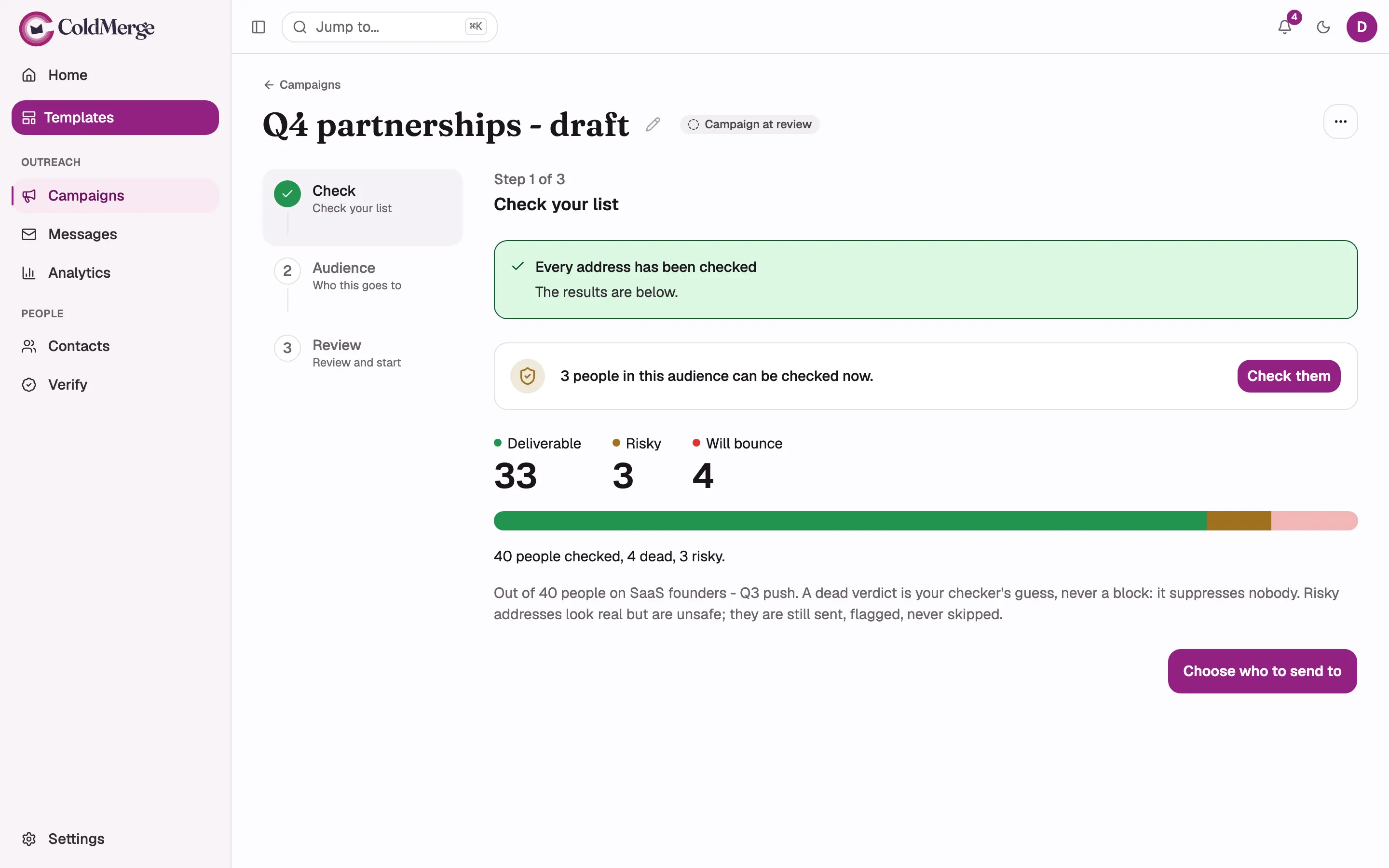
- Select Check them to verify the remaining addresses.
- Review the deliverable, risky, and bounce verdicts.
- Choose who to send to when the check is complete.
2. Choose the audience
Section titled “2. Choose the audience”Check the reach count and excluded contacts at the top. Review each choice in Audience rules, then check Auto-sync alongside it. ColdMerge uses the safer option by default.
| Situation | Default | Other choice |
|---|---|---|
| A merge field is missing | Skip those contacts. | Add a fallback, or send with the field empty. |
| A contact is queued elsewhere | Skip them here. | Send to them anyway. |
| Verification says an address is likely to bounce | Skip likely bounces. | Include anyway. |
Keep Keep enrolling new people added to this list on if new list members should join the running campaign. Turning it off later does not remove anyone already enrolled.
3. Review and start
Section titled “3. Review and start”- Check the number of people who will receive the campaign.
- Check the message preview. Select an email in the sequence to view a follow-up, and Next member to check another eligible contact’s merge fields. Skipped contacts stay out of the preview. The preview’s unsubscribe link is inert; sent emails receive their own working link. Review the audience, mailboxes, sending window, verification, and auto-sync in Delivery settings.
- Choose Start sending now or Start later.
- Confirm the action.
Start sending now still respects the sending window and mailbox budgets.
For Start later, choose a date within 366 days. The date and time use your computer’s time zone. The campaign still waits for its sending window to open. ColdMerge shows the resolved first-send time after you confirm. Confirmation marks the Campaign launched, including when it is Scheduled. The first actual message sent is a separate milestone. Home then links to the Campaign for monitoring.
Warnings before launch
Section titled “Warnings before launch”| Warning | What to do |
|---|---|
| An address check is still running | Wait if you want the finished result to remove every address marked dead. |
| An address check is waiting to start | Open Verification to review its status. It has not started checking the affected addresses yet. |
The subject starts with Re:, Fw:, or Fwd: |
Rewrite it unless this is genuinely a reply or forward. |
| A payment has been overdue for 14 days | Update billing. New campaigns cannot start until the payment succeeds. |
When a payment blocks a scheduled start, the campaign remains Scheduled and starts after billing recovers. See What happens if a payment fails.
A running-check warning can name checks started from a list, import, or another campaign. Its count covers this campaign’s eligible queued addresses submitted to the checker, excluding fresh answered results. A waiting check has no submitted count yet. Starting before either check finishes can include unchecked addresses.
If every selected mailbox becomes unavailable after launch, use Manage mailboxes on the Campaign page to reconnect one. Pending recipients stay queued.
What becomes fixed
Section titled “What becomes fixed”- The target list becomes fixed when you launch.
- The first email becomes fixed after its first real send.
- Attachments become fixed when the campaign leaves draft.
- Follow-ups remain editable while the campaign is active.
Contact data for the first email is read when each send occurs. Follow-up merge data is captured when that contact is enrolled.
Before a campaign starts, Delete campaign removes it. After it is scheduled or started, use Cancel campaign. Cancellation cannot recall mail that has already been sent.
Next, learn how to monitor, pause, or cancel the campaign.