
How do I monitor and control a running campaign?
Read campaign progress, understand a pause, and pause, resume, or cancel sending.
3 min read
Open a scheduled or active campaign to see its progress. Monitoring works on a phone. Pausing, resuming, rescheduling, and editing require a computer, but you can cancel from either device.
Read progress
Section titled “Read progress”| Number | What it means |
|---|---|
| Sent | Messages sent out of the committed audience. |
| Replied | Replies and the campaign’s reply rate. |
| Opens | An approximate signal shown only when open tracking is on. |
| Clicks | Tracked link clicks, shown only when click tracking is on. |
The pace line estimates sends per day and days remaining. It also names the next send or the condition that is holding the queue.
The summary combines sent, replied, remaining, and the progress bar. Expand Mailboxes for the sender breakdown. Expand Recipients to filter contacts by sent, sending, queued, failed, skipped, or cancelled. Expand Emails sent for individual messages and their Gmail links.
The message preview and delivery settings share one panel. Select a follow-up from the message dropdown to inspect it. On active campaigns, expand Edit campaign settings and follow-ups to make changes, or Audience and enrollment to adjust who joins.
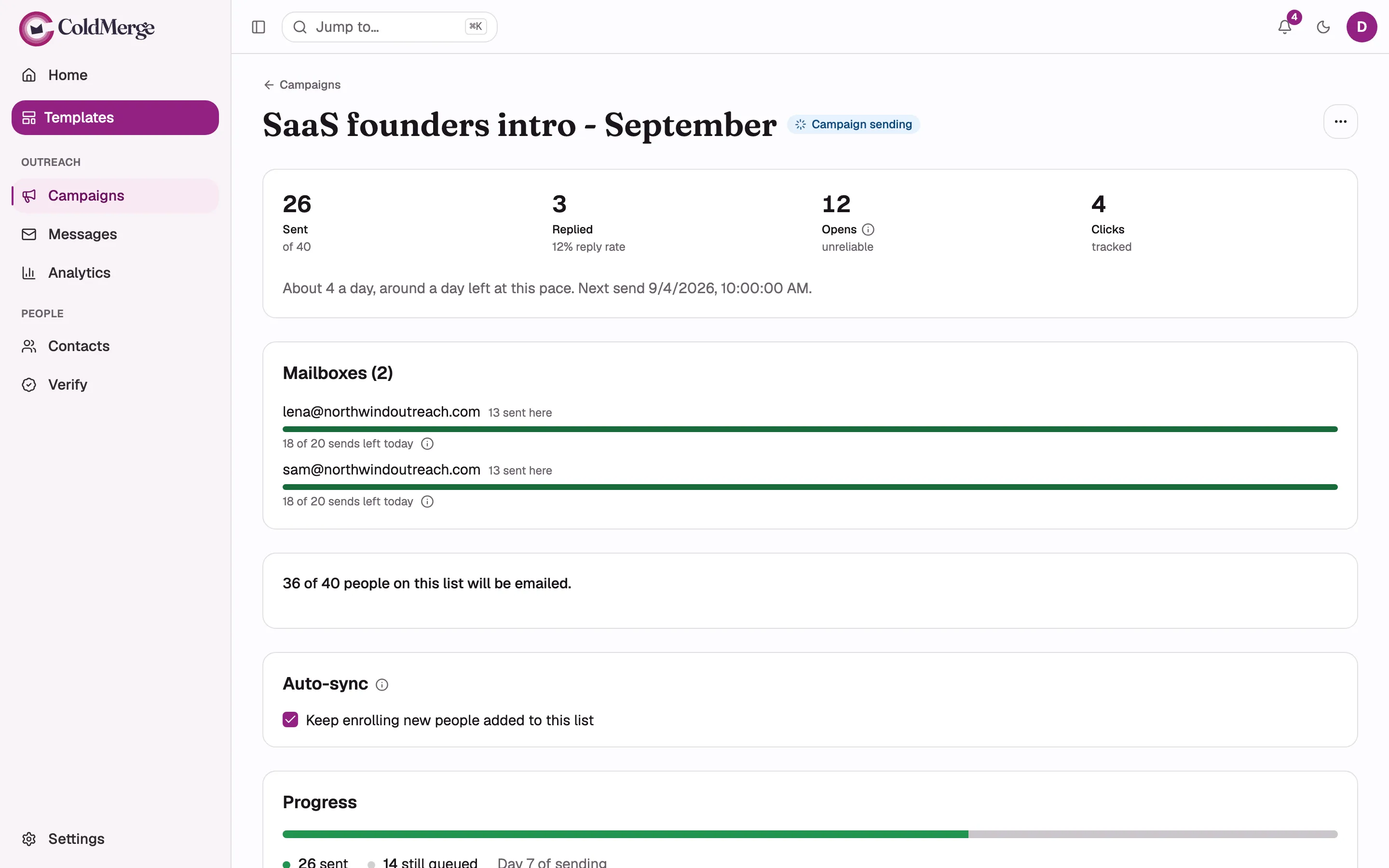
- Read sent and reply results at the top.
- Check how much sending capacity each mailbox has left.
- Follow campaign progress and queued recipients.
Understand the campaign state
Section titled “Understand the campaign state”| State or notice | Meaning |
|---|---|
| Scheduled | The campaign is waiting for its resolved start time and sending window. |
| Paused | A person paused it, billing recovered after a lapse, or ColdMerge stopped it after an error. |
| Paused, billing | Sending is blocked until billing is current. The campaign status itself does not change. |
| Cancelled | No queued contact will receive another message. |

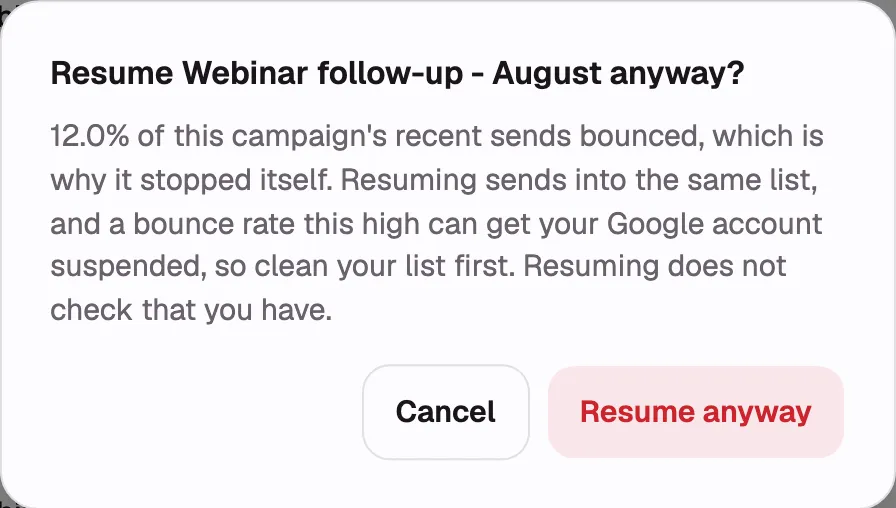
ColdMerge can pause a campaign after a high bounce rate, an empty message body, a lost unsubscribe footer, or several consecutive failures. Read the banner and recent messages before resuming.
If every selected mailbox needs reconnecting, the audience remains queued. The campaign continues after a mailbox is available again.
Pause the campaign
Section titled “Pause the campaign”- Open the campaign on a computer.
- Select Pause.
ColdMerge stops handing new messages to Gmail. A message already in flight can still finish.
Resume the campaign
Section titled “Resume the campaign”- Fix the reason shown in the pause banner.
- Select Resume.
- Confirm the warning if the campaign stopped for a high bounce rate.
Sending resumes with the oldest due message and still respects budgets, pacing, and the sending window. A campaign held after a billing lapse waits for you to resume it.
Cancel the campaign
Section titled “Cancel the campaign”- Open the campaign.
- Select Cancel campaign.
- Review how many people are still waiting, then confirm.
Cancellation is permanent. It does not recall messages that have already sent.
What you can still edit
Section titled “What you can still edit”| Setting | Editable until |
|---|---|
| Target list | The campaign leaves draft. |
| Attachments | The campaign leaves draft. |
| First email and subject variants | The first real send. |
| Name, sending window, and sending mailboxes | The campaign completes or is cancelled. |
| Follow-up steps | The campaign completes or is cancelled. |
After the first email locks, select Duplicate to a new draft to create an editable copy. You cannot remove the last mailbox from an active campaign.
For message-level outcomes and failure reasons, see Messages.