
How do I send my first campaign?
Connect a mailbox, import a small list, write a message, preview it, and start sending.
3 min read
Use a small list of people who expect the test. This walkthrough takes you from an empty workspace to a campaign that is sending.
- Prepare a UTF-8 CSV with an
emailcolumn and, if useful,firstNameandcompanycolumns. Twenty contacts is enough to learn the flow. - Open Settings, then Accounts.
- Select Connect a Google account.
- Choose the mailbox you want to send from and leave the Gmail permissions selected.
When Google returns you to ColdMerge, the mailbox shows Connected. See Connect your Gmail if it does not.
- If you connected Google Workspace, select the domain badge under the mailbox
and review SPF, DKIM, and DMARC. A free
@gmail.commailbox has no domain settings to configure. Follow Set up your sending domain before using a Workspace mailbox for real outreach. - Open Contacts, then Imports.
- Drop the CSV onto Drop a CSV here, or click to choose.
- Leave Separator on Detect automatically and select Read the rows.
- Check the heading row and Email column, then map any columns you want to use as merge fields.
- Choose Create a new list…, name the list, and select Save mapping.
- Select Apply import.
Nothing changes before Apply import. When the run finishes, review Added, Updated, and Skipped counts. See Import contacts for errors and skipped rows.
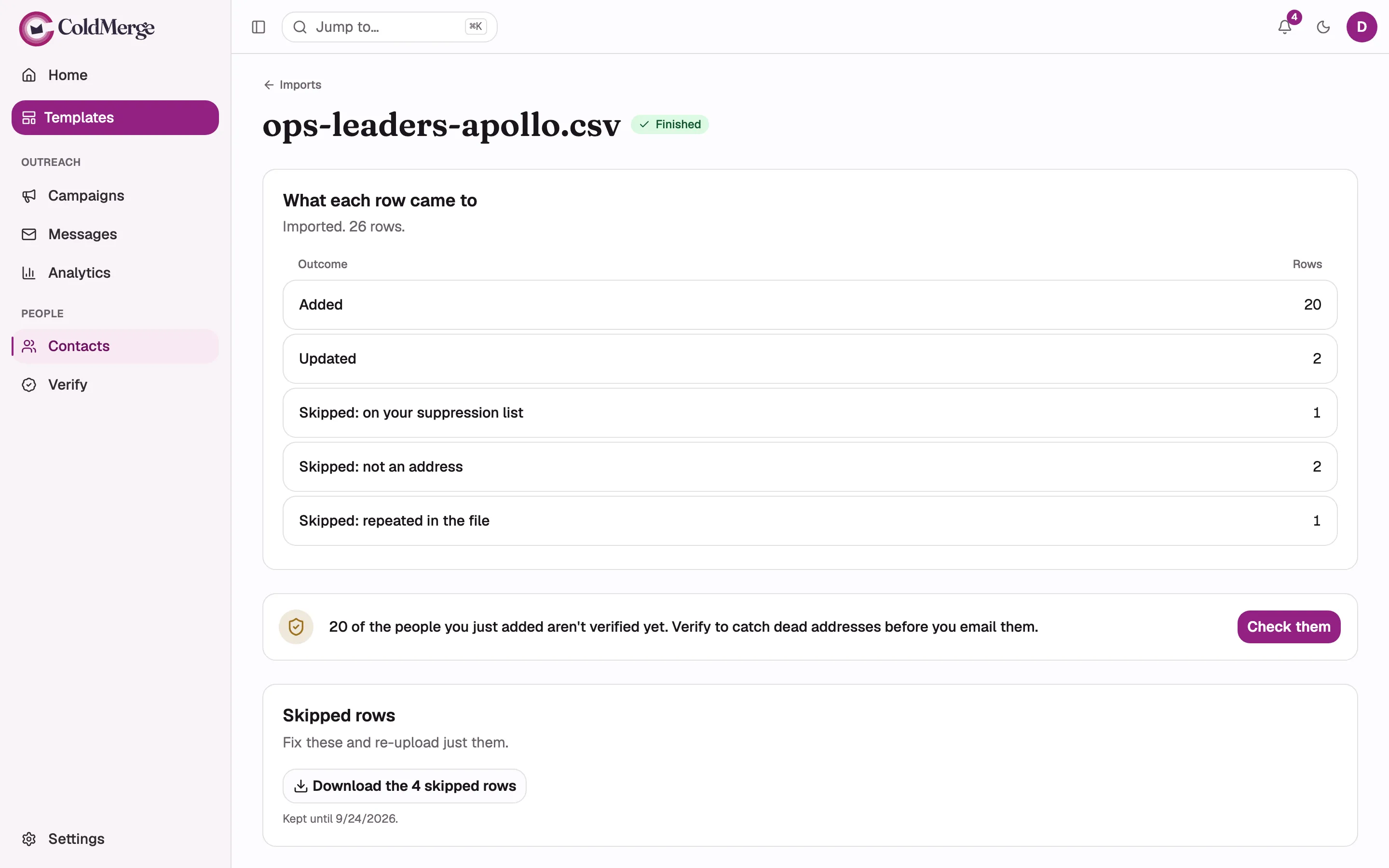
- Review how many rows were added, updated, or skipped.
- Check newly added addresses before emailing them.
- Download skipped rows if you need to correct them.
- Select View List on the finished import and confirm that its members look right.
- Return to the import results and select Create Campaign.
- Enter a name and choose the connected mailbox. The imported List is already selected.
- Write a subject and body.
- Add merge tokens only for fields present on the test contacts. A fallback
such as
{{firstName | there}}keeps the message readable when a value is empty. - Check the sending window. A new organization starts at 09:00 to 17:00, Monday to Friday, in UTC. Change the timezone to match your recipients.
- Select Save.
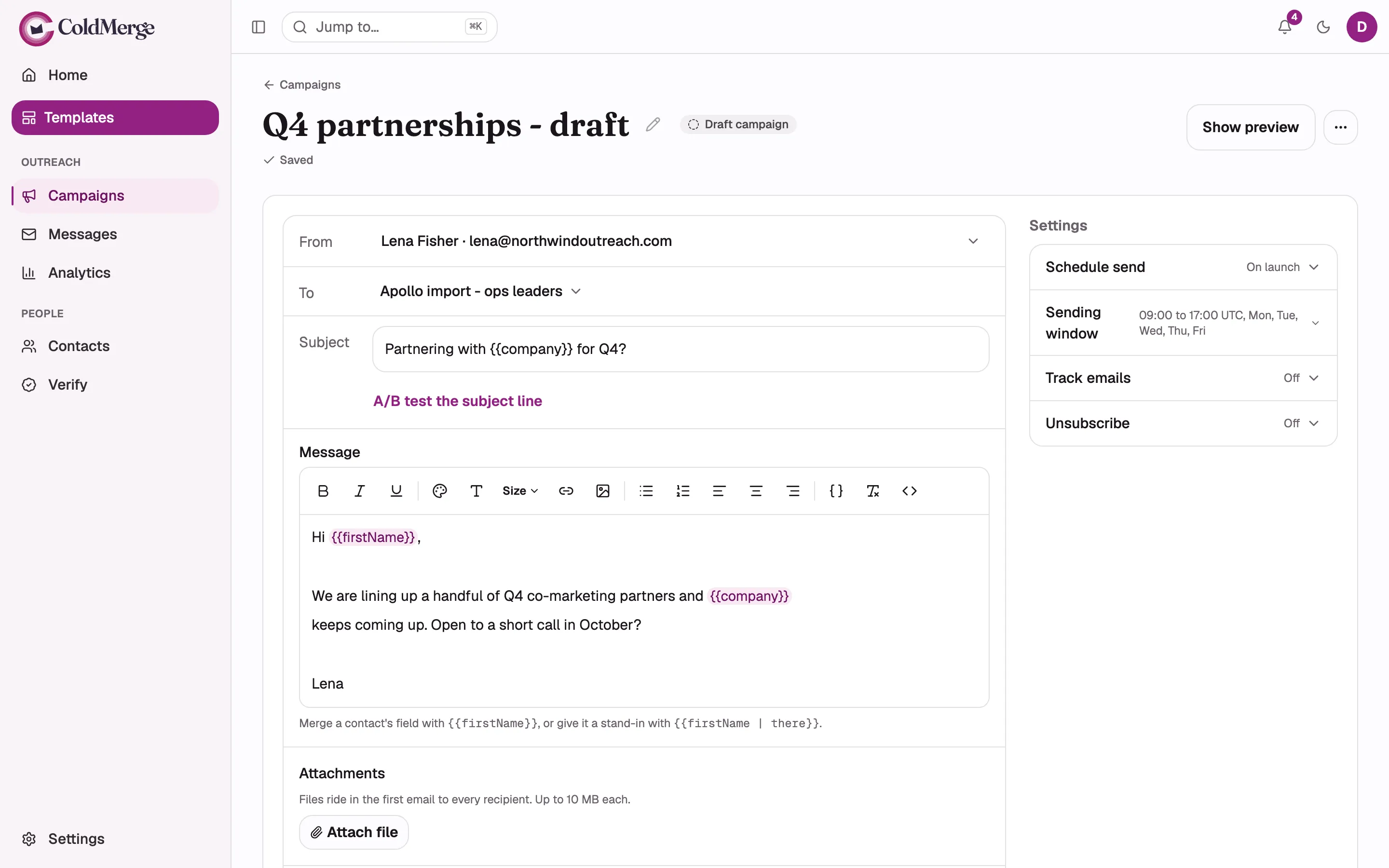
- Choose the sending mailbox in From.
- Choose the contact list in To.
- Write the subject line.
- Write the message.
- Check the sending window.
- Select Show preview.
- Select Show preview.
- Choose a contact whose data should fill the merge tokens.
- Select Send test email, enter an address you control, and select Send preview.
- Check the message in the receiving inbox.
A preview is real mail and uses the mailbox’s send budget. It does not enroll the recipient in the campaign. See Preview sends for the full rules.
- Select Continue to review.
- Read the list check and choose how to handle contacts already queued elsewhere, missing merge values, or addresses marked dead by verification.
- Review the message, mailbox, window, and audience.
- Select Start sending now, or choose Start later and a date.
Warnings explain a risk but do not always block launch. Read each one before continuing. Launch a campaign lists the cases that do block it.
- Confirm that the campaign page changes to Sending or Scheduled. It shows sent, queued, reply, and bounce figures as they change.
Your first Campaign is launched at this point. Return to Home to use Monitor Campaign. The final setup checklist row becomes Done after the first real Campaign message sends.
Do not expect the whole list to send at once. ColdMerge spaces messages inside the campaign window and each mailbox’s send budget. See Why do my emails trickle out?.
You now have a connected mailbox, a reusable list, and a campaign you can pause, resume, or monitor.