
How do I connect and manage my mailboxes?
Connect, reconnect, and disconnect Gmail or Google Workspace mailboxes, and fix common connection errors.
3 min read
Open Settings, then Accounts to manage the Google mailboxes your organization sends from. Owners and Admins can connect or disconnect mailboxes. Members can view them.
Connect a Google account
Section titled “Connect a Google account”- Select Connect a Google account.
- Review the permission rows in Before you continue. Open the information icon beside a permission to read why it is needed.
- Select Continue to Google.
- Sign in to the Google account you want to send from.
- Select both Gmail permissions, or select Select all, then continue.
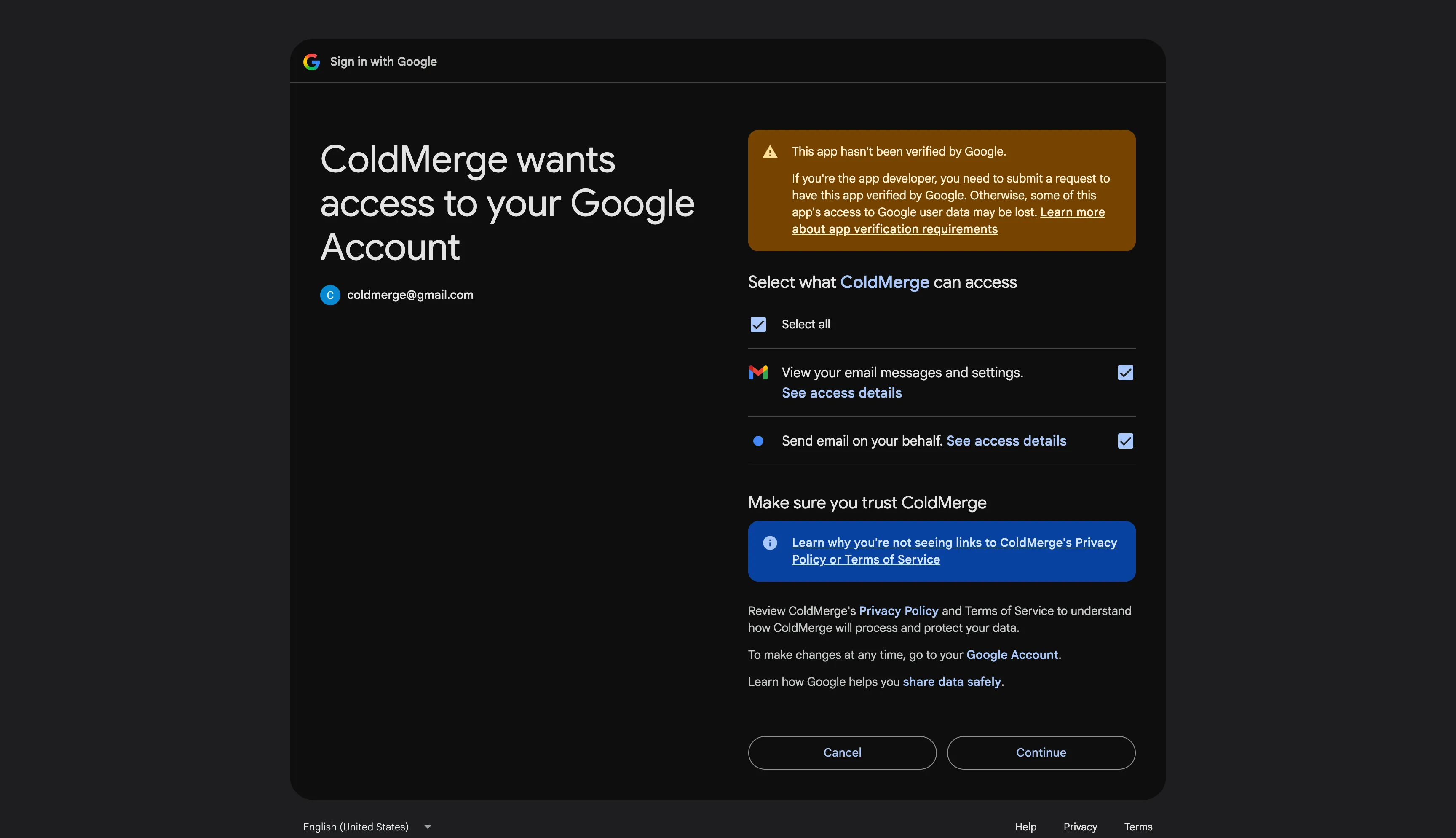
Google returns you to Accounts. A successful connection shows Mailbox connected. and adds a row with a Connected badge.
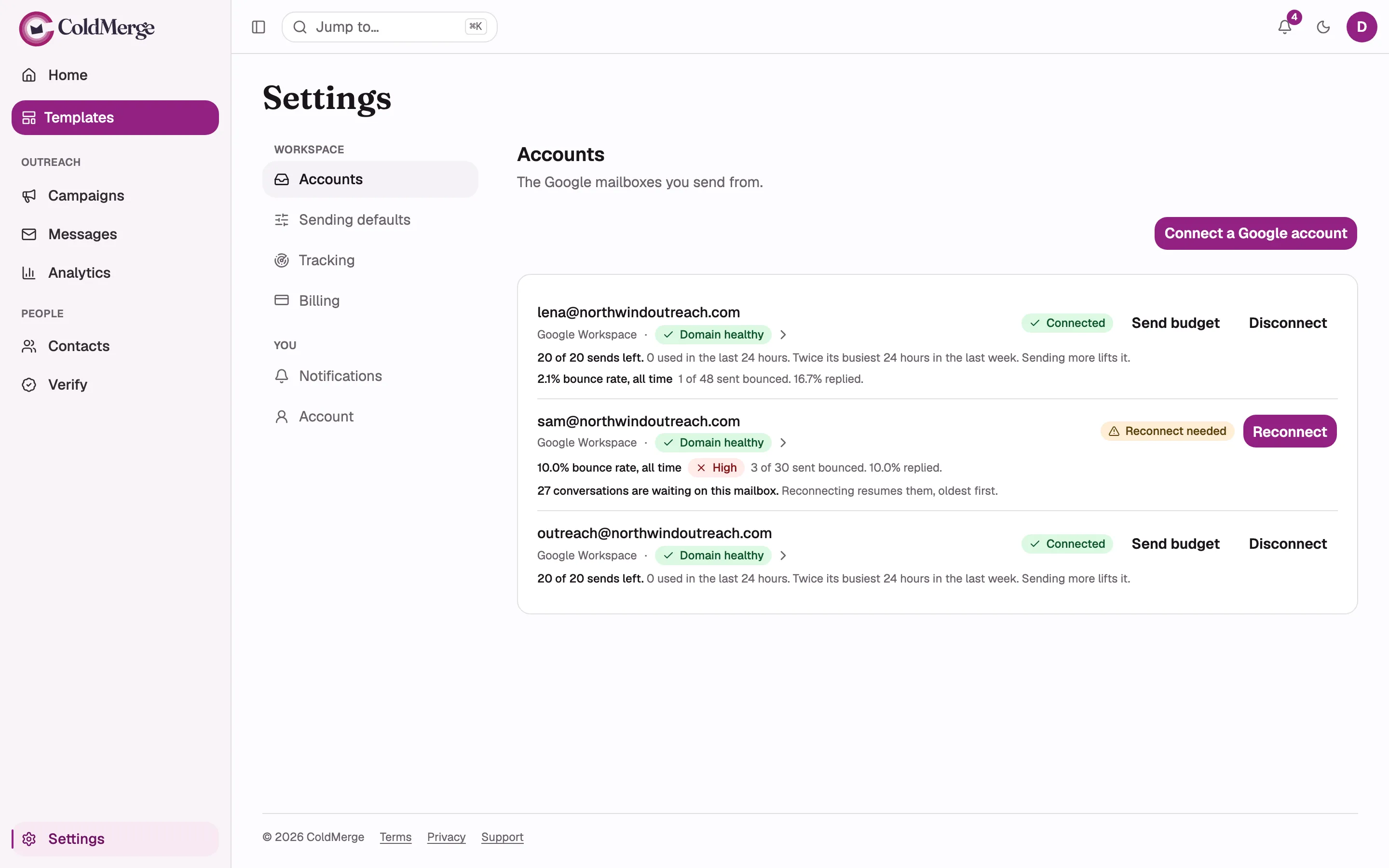
- Connect another Google mailbox here.
- Open the domain badge to inspect sending-domain checks.
- Reconnect a mailbox when its connection expires.
Permissions
Section titled “Permissions”| Permission | Why ColdMerge requests it |
|---|---|
| Send email | Send campaigns and follow-ups through the mailbox |
| Read email | Match replies to sent threads and stop follow-ups |
| Your name and email address | Show the mailbox and its sender name in ColdMerge |
Send email and Read email are required. ColdMerge refuses a connection that is missing either Gmail permission.
Connection errors
Section titled “Connection errors”| Message | What to do |
|---|---|
| Connection cancelled. | Start again when you are ready. Nothing was created. |
| Send email and Read email are both required… | Connect again and select both Gmail permissions. |
| Google did not return a lasting credential. Try again. | Run the connection again. |
| That mailbox is connected elsewhere… | Disconnect it from the other ColdMerge organization first. |
| You have reached your plan’s mailbox limit… | Upgrade, or disconnect a mailbox you no longer use. |
| Your session expired… | Log in to ColdMerge again, then reconnect. |
| Could not connect. Try again. | Retry, then contact support if it continues. |
ColdMerge does not reveal which other organization holds a mailbox.
When a mailbox stops sending
Section titled “When a mailbox stops sending”| What happened | What you see | What to do |
|---|---|---|
| Google withdrew permission | Reconnect needed | Reconnect the mailbox. |
| A Google Workspace administrator blocked the app | The mailbox remains Connected, but alerts say it is blocked | Ask the Workspace administrator to allow the app. |
Campaigns keep their queued recipients while the mailbox is unavailable. ColdMerge does not move an existing conversation to another sender.
Reconnect a mailbox
Section titled “Reconnect a mailbox”- Find the mailbox with the Reconnect needed badge.
- Select Reconnect.
- Sign in to the same Google account and approve the permissions.
Reconnection keeps the mailbox’s history and original ramp-up date. Waiting follow-ups resume from the oldest once the connection works again.

- The badge marks a mailbox that needs reconnection.
- Select Reconnect to restore sending.
Disconnect a mailbox
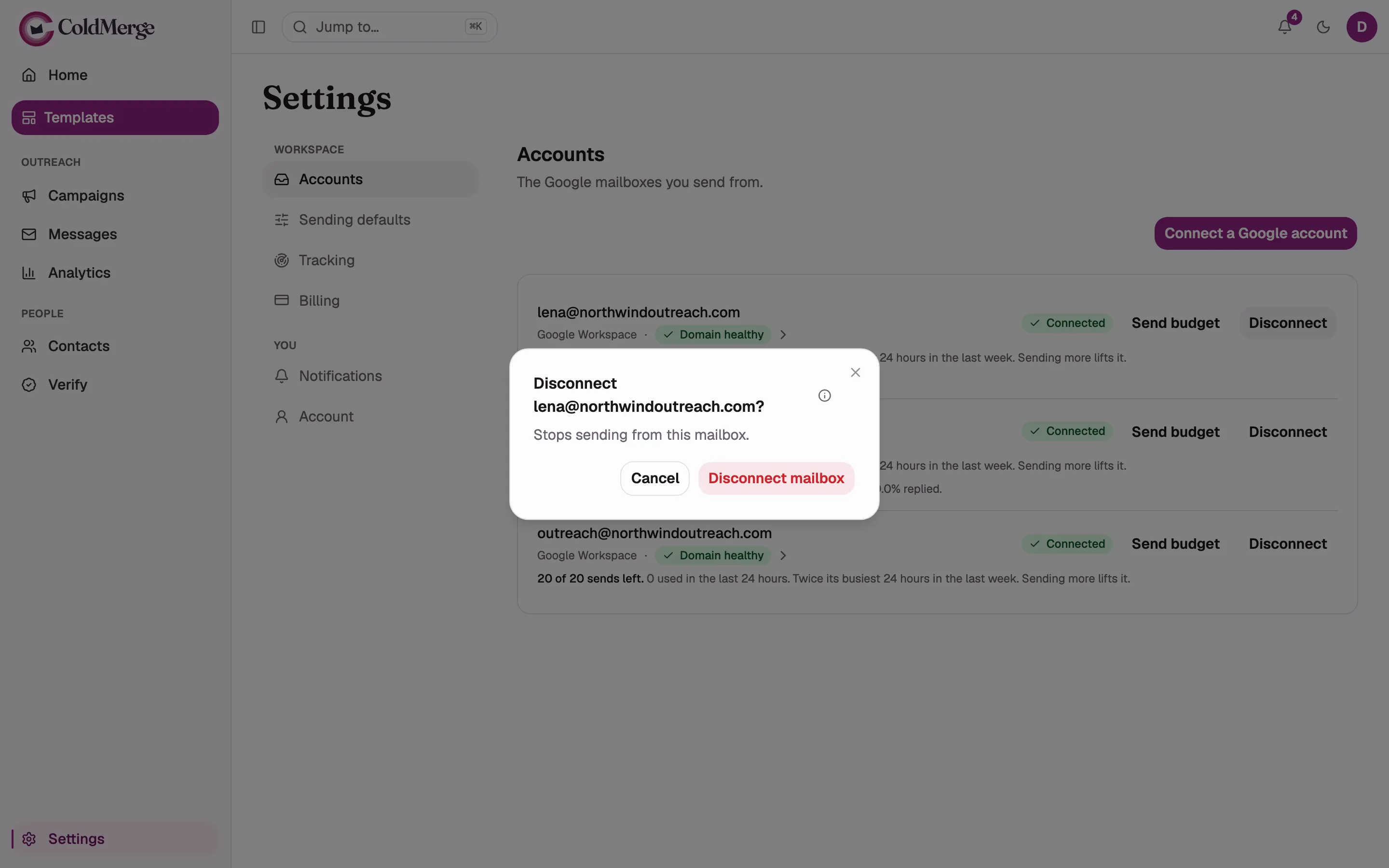
Section titled “Disconnect a mailbox”- Find the mailbox and select Disconnect.
- Read the confirmation.
- Enter your current password if asked. If you use Google without a password, select Confirm with Google, then reopen Disconnect after you return.
- Select Disconnect mailbox.
Disconnecting revokes ColdMerge’s Google access and stops new sends from that mailbox. Sent history remains. The mailbox becomes available to another ColdMerge organization, so you may not be able to reclaim it later.
Gmail and Google Workspace
Section titled “Gmail and Google Workspace”| Google Workspace | Free Gmail | |
|---|---|---|
| Sending domain | Your own domain, with SPF, DKIM, and DMARC status | No domain settings for gmail.com |
The mailbox types also have different provider ceilings. See How much can each mailbox send?.
For a Workspace mailbox, continue to set up the sending domain.