
How do I write my campaign?
Choose the audience and senders, write the message, add files, and save a campaign draft.
4 min read
Create and edit campaigns on a computer. Nothing sends while a campaign is a draft.
Create the draft
Section titled “Create the draft”- Open Campaigns and select New campaign.
- Choose one or more connected mailboxes in From.
- Choose a list in To.
- Write the Subject and Message.
- Review the four settings beside the message.
- Select Save.
In Settings > Sending defaults, expand Sending window to edit it. Your postal address, needed only if a campaign has an unsubscribe footer, is on the same page.
In Sending window, search timezones by city or UTC offset, such as Lagos or +1. Offsets shown reflect the current date; regional daylight-saving rules still apply when sending.
The first save creates the campaign. Attachments and Follow-ups then appear below the message.
To name your campaign, select the pencil beside the page title. The editor uses the same type style as the title. Press Enter or select Save name to finish; press Escape to cancel the rename.
Choose mailboxes
Section titled “Choose mailboxes”Keep a mailbox selected while it has unfinished follow-ups or an email in flight. If you try to remove it, Save names the mailbox and leaves the campaign unchanged. Wait for its conversations to finish, or cancel the campaign to stop the remaining sends.
Choose an audience
Section titled “Choose an audience”Choosing a list in To writes nothing until you press Save. The list is a draft-only choice: once the campaign leaves draft it is shown but frozen. An archived list is flagged inline.
To reuse existing content, select Start from a template, choose a template, then select Use this template before the first save.
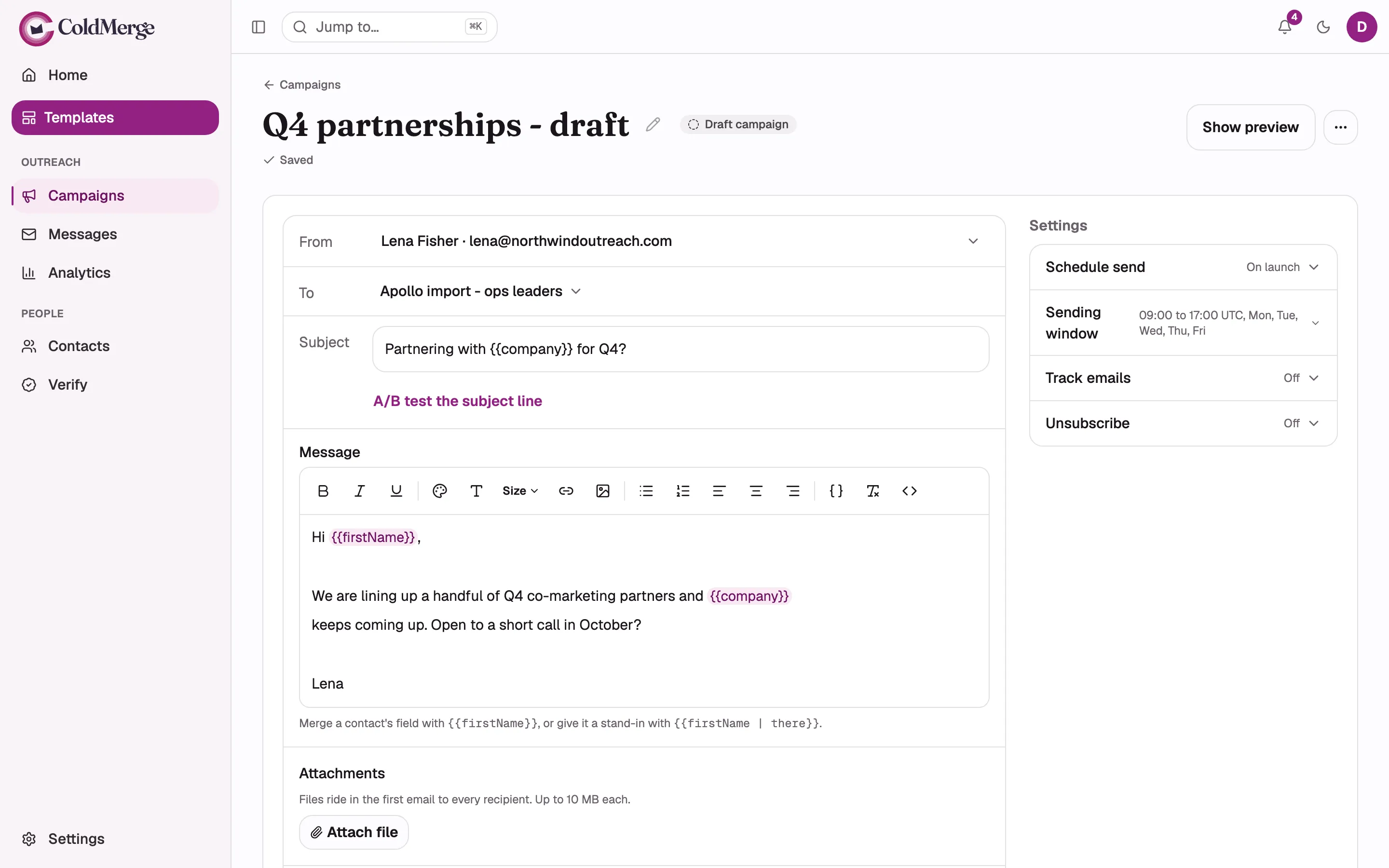
- Choose the sending mailbox in From.
- Choose the contact list in To.
- Write the subject line.
- Write the message.
- Review schedule, sending window, tracking, and unsubscribe settings.
- Open Show preview before sending.
Write the message
Section titled “Write the message”Merge tokens work in the subject and body. See the merge token reference for the available fields and fallback syntax.
ColdMerge sends plain text until the message contains formatting, an image, or open or click tracking. Any of those changes the whole sequence to HTML, including follow-ups.
Test subject lines
Section titled “Test subject lines”- Select A/B test the subject line.
- Add between 2 and 5 subject lines.
- Save the campaign.
ColdMerge distributes variants evenly at launch. Before the first send, you can edit their wording, add or remove variants, or turn A/B testing off. Changing the number of variants rebuilds the even split across the saved variants. Turning A/B testing off sends everyone the single Subject. Variants become fixed when the first message sends.
Add an image
Section titled “Add an image”Select Insert image, then either enter an image URL or upload a PNG, JPEG, GIF, or WebP file. Each upload can be up to 10 MB. A workspace can store 200 MB of uploaded images and upload 30 images per hour.
Uploaded images are served by link. They do not count toward the attachment limit.
Attach a file
Section titled “Attach a file”Select Attach file below the message. A campaign can carry up to 10 files, with a limit of 10 MB per file and 17 MB in total. Attachments go only with the first email and lock when the campaign leaves draft.
Gmail blocks executable and script file types. Share a link when Gmail refuses a file.
Review the settings
Section titled “Review the settings”| Setting | What it controls |
|---|---|
| Schedule send | Start on launch or at a later date and time. |
| Sending window | The days, hours, and time zone in which this campaign may send. |
| Track emails | Open and click tracking. Both start off. |
| Unsubscribe footer | An optional unsubscribe footer. It starts off. |
A campaign can launch without an unsubscribe footer. You are responsible for including an opt-out and a postal address where the law requires them. See Add an unsubscribe footer or header.
The scheduling choice is not committed until you finish the launch review. Mailbox daily limits live under Settings, then Accounts, not in the campaign.
Save and continue
Section titled “Save and continue”Save writes the changes on the compose card. Reset restores the last saved version. A preview uses the saved version, so save before sending one.
Add sequence steps in Follow-ups, then select Continue to review. This opens the launch review and still sends nothing.
If a save is refused, none of its changes are applied. Correct the reason shown and save again. Continue to review stays disabled while edits are unsaved.
Review wording before sending
- Open the free cold email copy checker and paste the body.
- Optionally enter sample fields as a JSON object with text values.
- Choose Review body and inspect the preview and observations.
- Review quoted wording in context, edit the draft and run the check again.
Checks run locally and cover English urgency, claims, money or prize promises and vague link instructions, alongside length, formatting and merge fields. A phrase match is an editing prompt, not proof of spam. The checker does not predict inbox placement.
Prepare your message with free tools
These tools run in your browser without an account or paid APIs. Inputs and outputs stay in the tab; clear the form to remove them.
Write an email in the standalone editor
- Write or paste your email body.
- Apply formatting with the toolbar.
- Expand Add a link or merge field if needed. Select text before adding a link, or insert a placeholder such as
{{firstName | there}}. - Choose Preview and export.
- Choose Copy formatted email, Download .html or Download .txt. Expand HTML and plain-text output to copy either version.
Pasted content is inserted as plain text. Merge fields stay as placeholders; images and attachments are not included. Your draft stays in the tab and is not saved automatically. Clearing the draft also removes undo history. Editing hides the previous preview until you preview again.
Estimate message size
- Choose Body format.
- Paste the Message body.
- Add local files under Attachments to read their sizes, or enter Additional attachment sizes (MiB), one per line.
- Set Message budget (MB) in decimal MB.
- Choose Calculate size.
- Review the breakdown. Choose Download size report to save it.
The estimate assumes base64 encoding, CRLF line endings and a fixed header allowance. It does not fetch remote images, predict clipping or guarantee acceptance by a provider.
Create a plain-text alternative
- Paste the source into Email HTML.
- Choose Convert to text.
- Review Plain-text output.
- Choose Copy text or Download .txt.
The converter keeps readable text, link destinations, lists and image descriptions. It skips scripts, styles and document metadata without loading external resources. It does not verify links.
Create an email signature
- Enter Full name and any optional contact details.
- Choose Layout.
- Select Create signature.
- Choose Copy formatted signature.
- Paste into your mail client's signature settings. Copy HTML, Download .html and Copy plain text are also available.
Use a complete HTTPS website address. Preview links are disabled; exported links remain active. Send yourself a test email because mail clients can render signatures differently.
Create an email link
This free tool runs in your browser without an account. Inputs stay in the tab until you clear the form or leave the page.
- Enter bare addresses in To, separated by commas, semicolons or new lines. Add CC and BCC only if needed.
- Optionally enter Subject, Message body and Link text, then choose Generate link.
- Use Copy link, Copy HTML or Download .txt. The test link opens your configured mail app; review its draft before sending.
BCC addresses remain visible in the link and its source. Mail apps may handle optional fields and long links differently. Mailto links cannot attach files.