
What does the Home screen tell me?
Read setup progress, recent reply and bounce rates, trial notices, and workspace totals.
2 min read
Home shows what needs attention, how recent campaigns are performing, and what is left to set up. It works on desktop and phone.
Follow the next action
Section titled “Follow the next action”Home leads with the next action for your Organization. Select Connect Gmail, Continue Contacts import, Create your first Campaign, or Continue Campaign to pick up where you left off. If a completed import has no unsuppressed Contacts in an active List, Review Contacts import returns to its result and recovery steps. After you confirm a Campaign, Home offers Monitor Campaign. A Scheduled Campaign has launched even if its first message has not sent yet. When a completed Contacts import populated a ready List, Create your first Campaign selects that import’s destination List. Home also finds older unfinished imports so you can resume them after later uploads.
If you are a Member and no mailbox is connected, Home tells you to ask an Owner or Admin. You can still use the rest of the app.
Notices
Section titled “Notices”Notices appear at the top when something needs action. They can include:
- trial time or sends running low;
- a mailbox that needs to be reconnected;
- a billing or account problem.
Use the action in the notice to open the relevant page.
Get your first campaign out
Section titled “Get your first campaign out”The setup checklist links to four tasks:
- Connect a mailbox.
- Import your contacts.
- Create a list.
- Send your first campaign.
Each row shows Done or To do. Members do not see the mailbox step because only Owners and Admins can connect one.
The final checklist row becomes Done after the first real Campaign message sends. Home’s launch action finishes earlier, when you confirm Start sending now or Start later.
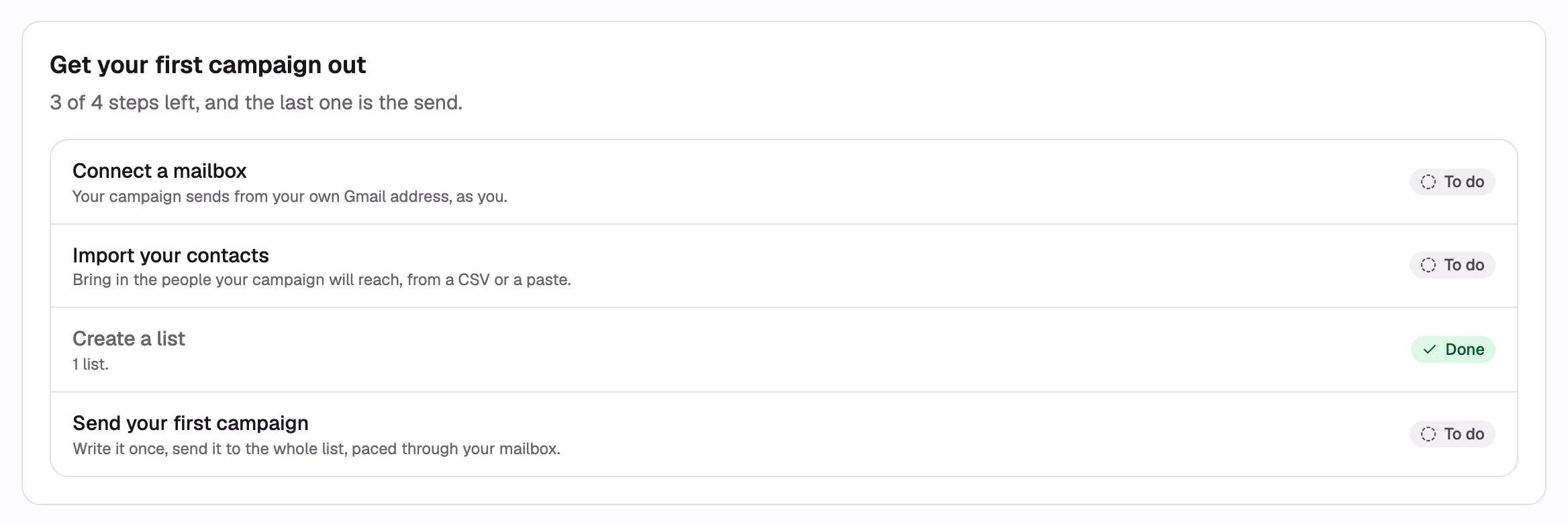
Follow Send your first campaign to complete the checklist.
Reply rate
Section titled “Reply rate”After the first send, Home shows a card with:
- reply rate and the reply and sent counts behind it;
- bounce rate and its health badge;
- the reporting period.
Select the card to open Analytics. The card is hidden before anything has sent.
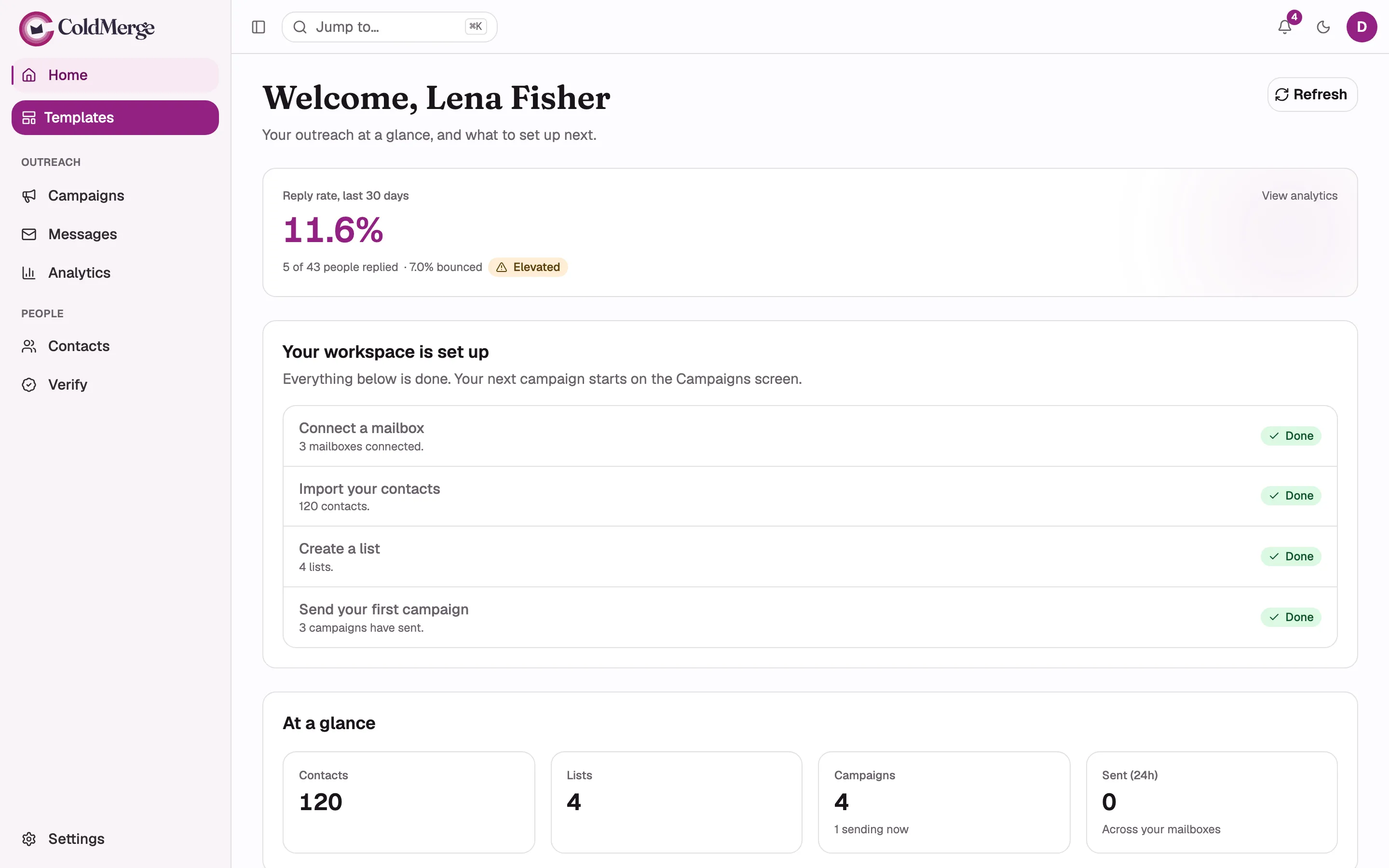
- The reply rate covers the last 30 days.
- Open the card to view Analytics.
- The Lists tile shows the workspace list count.
At a glance
Section titled “At a glance”| Tile | What it counts |
|---|---|
| Contacts | Every contact in the organization |
| Lists | Lists in the organization |
| Campaigns | Campaigns in every state, with a note when any are sending |
| Sent (24h) | Messages and previews sent in the rolling last 24 hours |
Sent (24h) does not reset at midnight. Select any tile to open that section.
Refresh the page
Section titled “Refresh the page”Select Refresh beside the greeting to reload Home. If refreshing fails, ColdMerge keeps the previous figures and shows an error. Try again after checking your connection.