
How do I connect my Gmail?
Connect one Gmail or Google Workspace mailbox so ColdMerge can send campaigns and detect replies.
1 min read
Connect at least one mailbox before you send a campaign. Only an Owner or Admin can connect one.
Connect your first mailbox
Section titled “Connect your first mailbox”- Open Settings, then Accounts.
- Select Connect a Google account.
- Read What Google will ask for, then select Continue to Google.
- Choose the mailbox you want to send from.
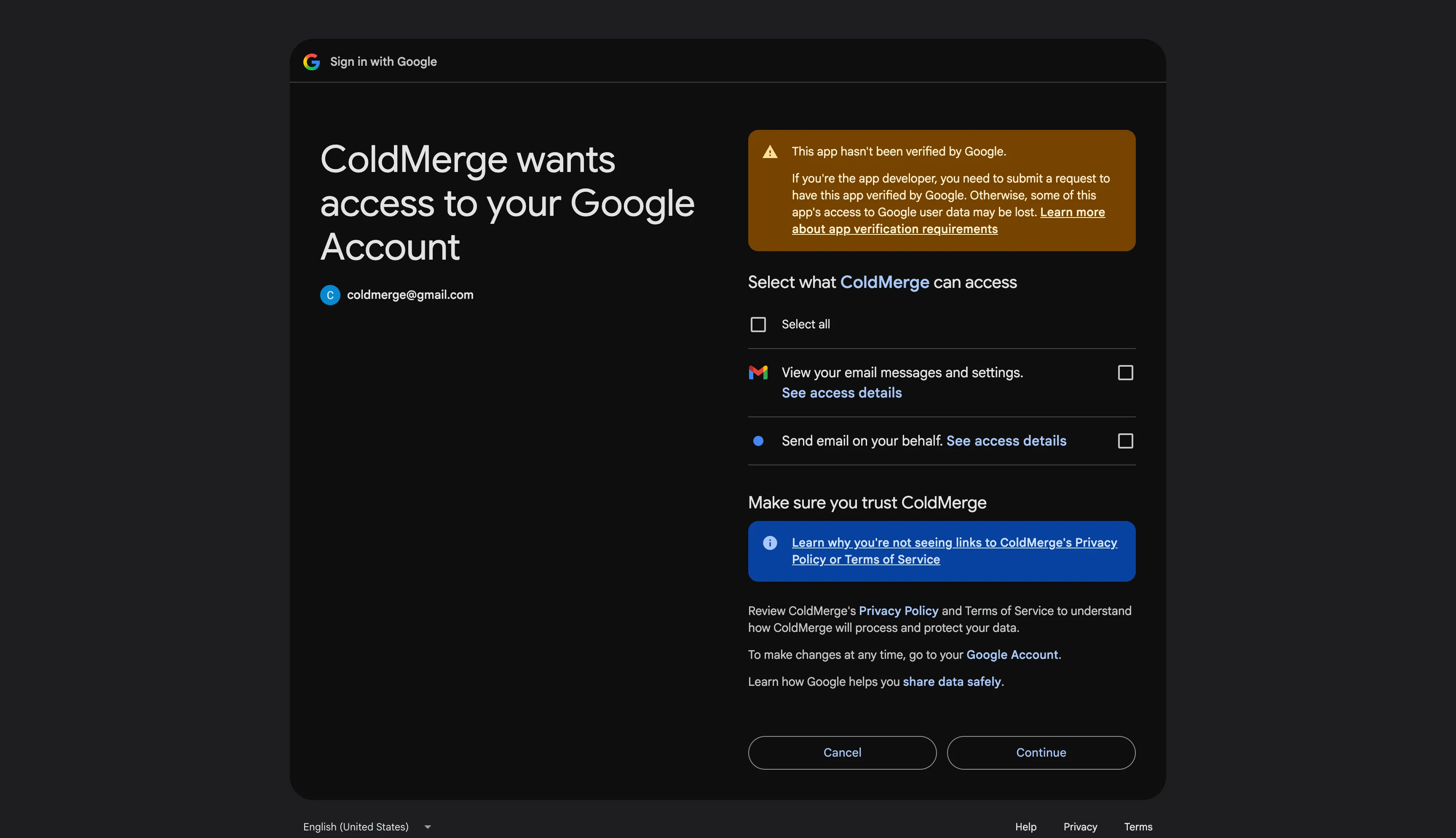
- Select both Gmail permissions, or select Select all, then continue.
Google returns you to Accounts. A successful connection shows Mailbox connected. and adds the mailbox with a Connected badge.
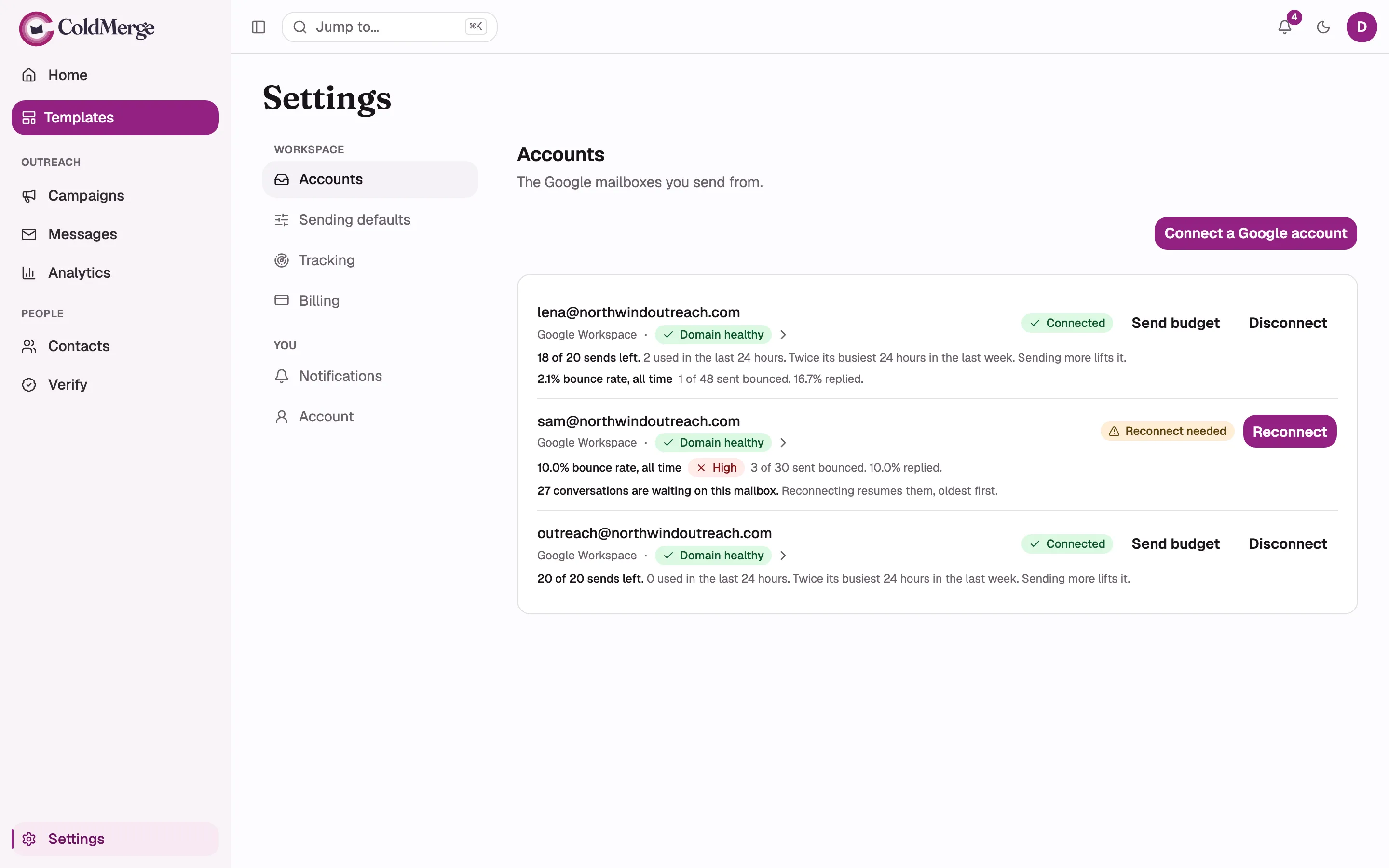
The numbered dots in this screenshot
- Select Connect a Google account to add a mailbox.
- A Connected badge confirms the mailbox is ready.
- Use Reconnect if a mailbox needs attention.
What each permission is for
Section titled “What each permission is for”ColdMerge needs Send email to send campaigns and Read email to detect replies and stop follow-ups. Both are required. The identity permission is optional and supplies the sender name shown with your address.
For connection errors, reconnection, and disconnection, use the full mailbox management guide.
Continue to send your first campaign.