
How do I reuse a message with templates?
Save reusable campaign content and start a new campaign from it.
3 min read
A template stores one reusable email or a sequence with follow-ups. Starting a campaign from it creates an independent copy.
Templates belong to your account, not to a campaign. Find them under Templates. The list has three columns, Name, Messaging (which reads “Single email” or “3-step sequence”) and Updated. Before you save your first one it says “No templates yet”.
Save a campaign you liked as a template
Section titled “Save a campaign you liked as a template”- Open the campaign.
- Open the overflow menu in the header and choose Save as template.
- Give it a Template name and confirm.
The dialog states the rule itself: “Copies the message and follow-ups to your library; audience, schedule and mailboxes aren’t.”
Write a template from scratch
Section titled “Write a template from scratch”- Open Templates and press New template.
- Write the name, the subject and the body. Nothing exists until you press Save, at which point the template is created and gets its own page.
- To make it a sequence, press Add a follow-up email and set the days to wait and the body, the same way you would on a campaign. Save each follow-up on its own.
The follow-up rules are a campaign’s, including the cap of 8. See How follow-up sequences work.
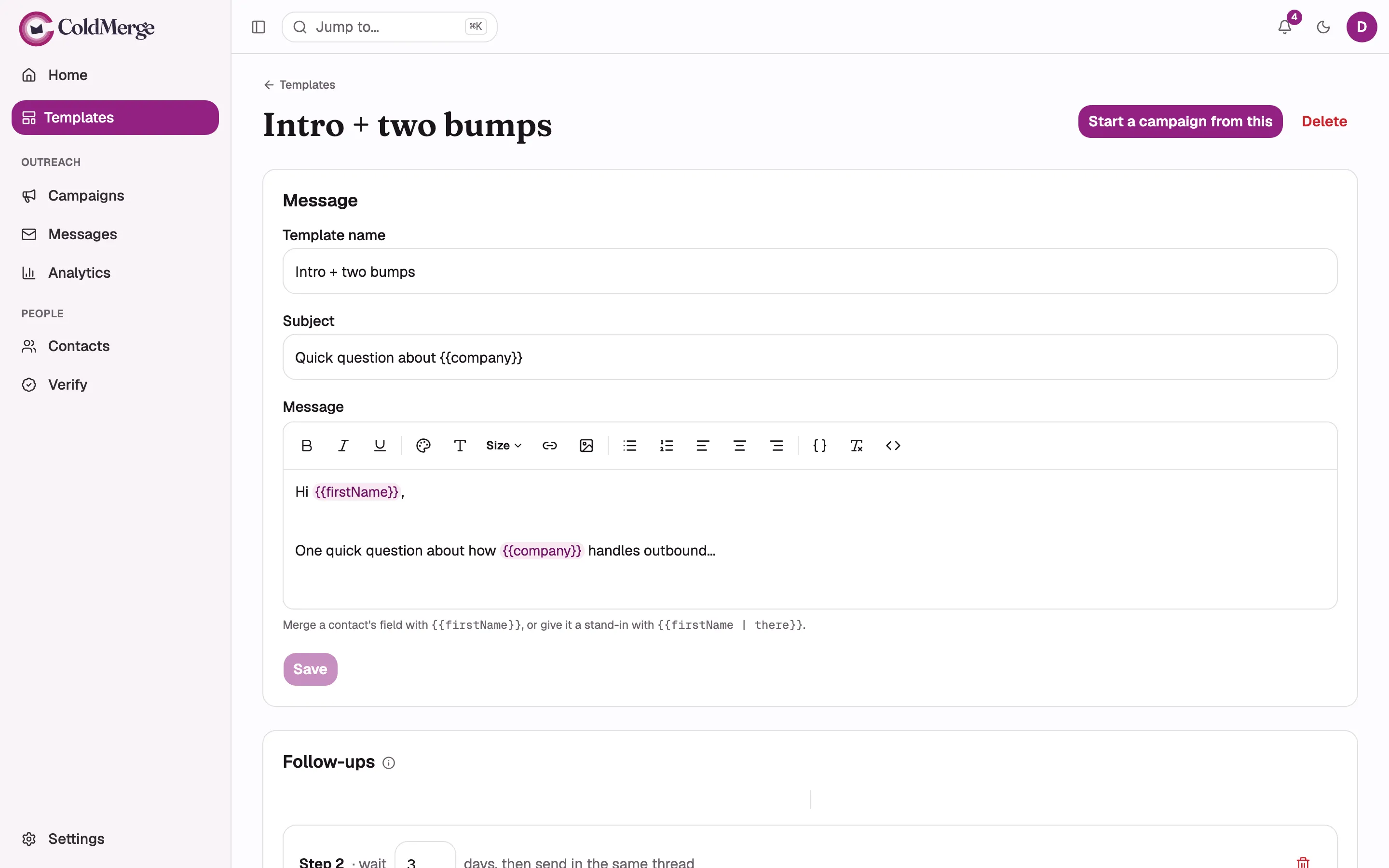
- Name the template.
- Write the subject line.
- Write the message and add any merge fields.
- Select Save to keep the template.
- Start a campaign from the saved template.
What a template stores
Section titled “What a template stores”| Carried into the new campaign | Not carried |
|---|---|
| The subject | Subject A/B variants |
| The body | Attachments |
| The body format | The list |
| Every follow-up, with its wait | The mailboxes |
| The sending window | |
| The schedule | |
| The tracking toggles |
Saving an A/B campaign as a template keeps only the Subject row’s text. You rebuild the test on the new campaign.
Start a campaign from a template
Section titled “Start a campaign from a template”From the template’s page:
- Press Start a campaign from this. ColdMerge creates a new draft campaign with the message and follow-ups already copied in, and takes you there.
From a new campaign:
- Press Start from a template. A sheet opens with your library on the left.
- Select one. Its step 1 message and a summary of its follow-ups preview on the right.
- Press Use this template.
That button appears only on a campaign you have not saved yet, and only once you have at least one template. A first-time author sees no button at all.
Either way you still pick the mailboxes and the list, and you still walk the launch wizard. See Launch a campaign.
Delete a template
Section titled “Delete a template”- Open the template.
- Press Delete.
- Confirm in the dialog titled “Delete this template?” by pressing Delete template.
Campaigns built from it keep their own copy and carry on.
How copies behave
Section titled “How copies behave”The copy is one-way and happens once, at the moment you start the campaign. Editing the template afterwards never reaches campaigns already built from it, and editing one of those campaigns never changes the template.
Writing a template is a desktop task. On a phone, its subject, body, and follow-ups are read-only.
Adapt a free gallery example
The email templates gallery contains example sequences you can adapt. It is separate from your saved account templates.
- Search for your use case and open a template.
- Read the audience notes and replace fictional claims and sender details.
- Use the copy control on each message or choose Download .txt. Downloads contain the message body; copy the initial subject separately.
- Paste the message into your campaign or a new account template. Review the merge fields, follow-up timing and opt-out controls before saving.
Search runs in your browser. Copying and downloading preserve the original merge fields and line breaks.